The GE Series 90-30 PLC became obsolete in 2018, but there are still sites that use it in production today. I recently got to work with one to make a backup of the program, and make some programming changes. I wanted to create this guide to put everything I learned in one place and give credit to those who helped along the way!
This guide will show you:
- Required tools and software
- How to set up the environment
- How to connect to a 90-30 PLC
- How to change mode
- How to upload
- How to edit
- How to download
Required Tools and Software
- Programming software
- Windows XP computer or VM
- Serial port/USB to DB9 adapter
- DB9 to SNP converter
How to Set Up the Environment
The setup is the most important part of this exercise. I’ve read through all the reddit, PLCS.net, and Emerson support site articles and here’s how I did it.
Programming Software
90-30 PLCs can be programmed with either one of two software packages:
- Logicmaster v.9.05
- Emerson PAC Machine Edition (formerly GE Proficy Machine Edition)
Logicmaster is not available commercially, maybe Ebay or third-party sites, however, reach out to your distributor. Chances are they can help you out. Thanks Tim!
Depending on the 90-30 firmware revision, Machine Edition may not be compatible. Some documentation reference a numerical revision number (4.40 or greater), but the 90-30 PLC may only show the letter based revision at the end of the part number (IC693CPU321K) Here’s a matrix I found on Emerson’s support site to map one to the other:
In my case, I had a print of the ladder logic and realized I needed Logicmaster. I also tried to connect with Machine Edition to be able to convert the project - that’s when I went down the rabbit hole of revision and firmware when I failed to connect to the PLC with Machine Edition.
Windows XP computer or VM
Many sources stated Logicmaster needs to be used in DOS or Windows XP. I was able to install Logicmaster with no hiccups. However, just for the fun of it I tried to install it on my Windows 10 VM and different compatibility modes, but it failed.
Serial port/USB to DB9 adapter
There were several sources online that said you need to have a real serial port. If you have one, great, but I didn’t, so I tried a UC232 cable I had on hand. I wasn’t having success, and just to be safe, ordered a Keyspan USA-19HS from Amazon, which I know works with other older devices well. There are a lot of counterfeit USB to DB9 adapters out there and the Keyspan has always worked for me. Just be sure to download the correct driver and install it with the adapter unplugged first.
DB9 to SNP Converter
I found PLCCables.com through Ebay and saw a lot of the (owner’s, I presume) comments on PLCS.net. They sell a lot of different.. PLC cables.
They have a couple different DB9 to 15-pin SNP cables. I got the cheaper one without a box on it. I asked the difference between them and they said the box one is better quality, but either should work. Here’s the links for those:
Another that is better quality
And to put it all together, below is a diagram of how I set it up.
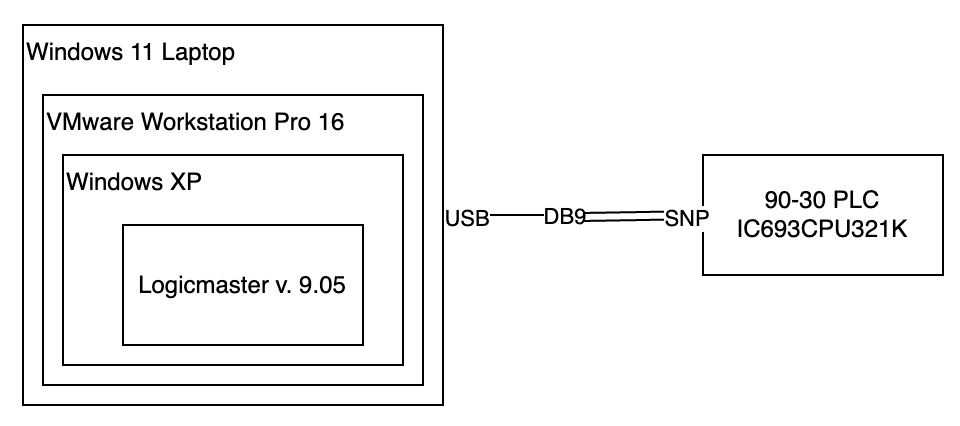 Diagram of setup from PC to 90-30 PLC
How to Connect to a 90-30 PLC
After you have your setup, you need to see if you can connect to the PLC.
Some important steps here are:
- Make sure serial adapter driver is installed on Windows XP
- Check your serial comm settings
- Check your 90-30 PLC comm settings
- Connect to the PLC
Make sure serial adapter driver is installed on Windows XP
If you have the Keyspan USA-19HS adapter like I do, they will have the driver on their website under Documents & Downloads.
https://www.tripplite.com/keyspan-high-speed-usb-to-serial-adapter~usa19hs
Install the driver on XP without the adapter plugged into your computer.
After install, restart your VM and connect the adapter.
Make sure the adapter connects to your VM by going to VM->Removable Devices->Your serial adapter->Connect (Disconnect from Host)
Check your serial comm settings
To check your serial comm settings, open Device Manager. On Windows XP, right click ‘My Computer’->Properties->Hardware tab->Device Manager
You should see ‘COM & LPT’ expand this and see your serial adapter (Keyspan USB Serial Port (COM1)
Right-click and go to properties->Port Settings
Here, change these to match your 90-30 settings, or use the default (19200, 8, Odd, 1, Hardware)
Next, click ‘Advanced…’
Here, change the COM Port number to COM1. I tried COM3, and it did not work for me.
Check your 90-30 PLC comm settings
If you don’t know the serial settings for your 90-30 PLC, and the default settings do not work, you can try this tool from GE/Emerson.
https://emerson-mas.force.com/communities/en_US/Article/PLC-Serial-Com-Test-Tool
It is supposed to auto detect the serial COM port and settings.
Connect to the PLC
After all your settings are set, and your cables are connected, we can attempt connecting.
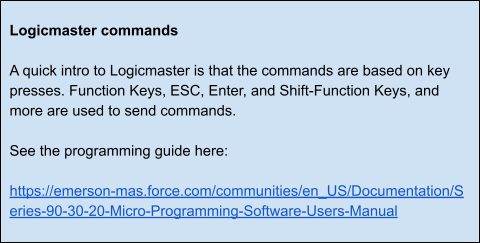
Open Logicmaster.
Make sure 90-30 is highlighted at the top (Shift-F3).
F9 will go into Setup File Editor.
Here we can press F4 to make sure ‘Serial port’ is selected.
Press ESC x2 to go back.
Press F1 to go into the Logicmaster 90 Programmer Package.
Here, at the bottom will show the communication status to the PLC. It may show OFFLINE, NO CONNECTION, MONITOR, or ONLINE.
The PLC may automatically connect. If not, press F7 to go to setup, then F4 to go to PLC Communications Serial Port Setup. Here, check the COM port is the same as your PC COM port, and the serial settings match your COM port. Mine are 19200, ODD, 1, 0.
Next, ESC, then F2 to Set Prgmr Mode. Press TAB to go to MONITOR or ONLINE, then press enter. If successful, you should see the scan time cycling at the bottom, else, ‘NO COMMUNICATIONS’ will be displayed.
How to Change Mode
There are 3 modes. Offline, Monitor, and Online.
Offline, you can make changes to the offline copy of the program and configuration.
Monitor, you can view the logic, configuration, and statuses.
Online, you can make changes to the logic, configuration, and values.
To quickly change the mode, use the shortcut ALT-M
How to Upload (PLC to PC)
To upload from the PLC to the programmer:
Open Logicmaster.
F1 to Logicmaster 90 Programmer Package.
F9 to Utility: Load/Store/etc.
F1 to upload from the PLC to the programmer.
Here, you can select what to upload. (Logic, configuration, reference tables)
How to Edit
Open Logicmaster.
F1 to Logicmaster 90 Programmer Package.
F1 to Program Display/Edit
Find the rung to edit/where you want to add a new rung.
F1 to insert or F2 to edit or F3 to modify in place.
Here, different instructions will be shown. More instructions are available with SHIFT-Function Keys. For example SHIFT-F6 will show the ‘move’ command.
How to Download (PC to PLC)
From the Logicmaster 90 Programmer Package, F9 to the Utility: Load/Store/etc.
F2 to Store from Programmer to PLC
Select what to store (Logic, configuration, reference tables)
Make sure the PLC is in ONLINE mode (ALT-M to change modes)
A RUN MODE STORE will temporarily pause the PLC while it downloads.
Other helpful information
Copy and paste between VM and host
Credit
- Emerson distributor - CB Pacific - Tim Burkett
- PLCS.net - Steve Bailey numerous posts
- PLCCable.com
- reddit.com/r/PLC